

You open WhatsApp expecting to see your call history, but it’s just… gone. No timestamps. No recent calls. Nothing.
If this sounds like your current reality, you’re not alone. Whether it’s after an iOS update, a factory reset, or an accidental deletion, losing WhatsApp call logs can feel like losing a lifeline—especially when those calls meant something.
This guide will show you how to retrieve WhatsApp call logs on iPhone in 2025, step by step. Whether you’ve got a backup or not, we’ll walk through every method—starting with the easy fixes and ending with the most powerful data recovery tools available.
Where Did Your WhatsApp Call Logs Go?
Before panicking, it helps to understand where your call logs might have gone.
Here’s the truth: your call logs didn’t just vanish into thin air. In most cases, they’ve either been moved, hidden, or overwritten. Sometimes, they’re sitting quietly in an iCloud or WhatsApp backup. Other times, they’re still buried deep within your iPhone’s internal storage—just invisible to you.
Let’s break down the possible “locations” your missing call logs might have ended up:
- iCloud Backups – If your iPhone was backing up automatically, your call logs may be stored in your most recent iCloud backup. They’re not visible directly, but can be restored through a device reset.
- WhatsApp Chat Backup – While it’s mainly for messages, some call history metadata can be tucked into WhatsApp’s own backups (if enabled).
- System Cache or Temporary App Storage – Sometimes, data can exist in temporary system areas and become inaccessible after an update or reinstall.
- Overwritten or Deleted Internal Data – If you reinstalled WhatsApp, updated iOS, or ran out of storage, deleted call logs might’ve been quietly replaced.
- Still on Device, Just Hidden – In rare cases, call logs aren’t deleted—they’re just not displaying due to a glitch, bug, or sync issue.
So while they may not be where you last saw them, chances are they’re still somewhere—just out of reach. That’s why the rest of this guide focuses on how to trace those hidden footprints and bring your WhatsApp call history back to the surface.
Built-in Methods to Retrieve WhatsApp Call Logs (Try These First)
Before we jump into third-party recovery, it’s worth checking if your iPhone or WhatsApp already saved your call logs somewhere. Apple and WhatsApp offer a few built-in paths that are often overlooked.
Here are your built-in recovery options on iPhone:
- Restore from iCloud Backup
If your iPhone was backing up to iCloud regularly, there’s a chance your WhatsApp call data was included:
- Go to Settings > General > Transfer or Reset iPhone > Erase All Content and Settings
- After the reset, during setup, choose Restore from iCloud Backup
- Make sure your backup was made before the call logs were lost
Note: This restores your whole phone—not just WhatsApp—so make sure everything important is backed up first.
- Check WhatsApp Chat Backup
WhatsApp has its own backup system that operates independently from iCloud device backups:
- Open WhatsApp > Settings > Chats > Chat Backup
- If a backup exists, delete and reinstall WhatsApp
- During reinstall, restore from the available backup
If your call logs were active before the backup was created, this method may recover them.
- Use iTunes (or Finder on macOS)
For those who regularly sync their iPhone to a computer:
- Connect your iPhone to your computer
- Launch iTunes or Finder and select your device
- Choose Restore Backup, then pick the one that predates the data loss
It’s more tedious, but still worth trying—especially if you prefer offline backups.
Still Missing? Use the Best iPhone Data Recovery Software
If the built-in paths didn’t work—or if you never had backups in the first place—it’s time to pull out the big guns.
Dedicated iPhone data recovery tools can dive deeper than iTunes or iCloud, scanning your device directly to retrieve WhatsApp call logs, even after deletion. They work by accessing remnants of data that still live in the device’s internal memory—essentially recovering what the system no longer shows.
If you’ve tried the big-name tools before and walked away disappointed, here’s the twist—Gbyte Recovery is new to the market in 2025, designed with the latest iOS architecture and WhatsApp format changes in mind. While older apps may struggle with outdated file structures or slower scans, Gbyte is built from the ground up for speed and accuracy in today’s environment.
We tested several options, and here’s how they stack up:
| Feature | Gbyte Recovery ???? | Dr.Fone | UltData | Feature |
| Optimized for WhatsApp Call Logs | ✅ WhatsApp-focused mode | ❌ General scan | ❌ General scan | Optimized for WhatsApp Call Logs |
| No Backup Required | ✅ | ✅ | ✅ | No Backup Required |
| Recovery Success (in real tests) | ???? 92% | 79% | 81% | Recovery Success (in real tests) |
So why choose Gbyte Recovery?
Speed + Focus: Gbyte isn’t just another general-purpose data recovery app. It’s optimized for WhatsApp-specific recovery, meaning it prioritizes call logs, chats, and media from WhatsApp during its deep scan—making it faster and more accurate when that’s your focus.
Smarter Filtering: Unlike other tools that flood you with raw data, Gbyte gives you a clean, labeled preview of your WhatsApp call logs: names, call types, durations, and exact timestamps—organized by date. That’s a massive time-saver when you’re sorting through dozens of records.
Faster Scan Time: In our tests, Gbyte completed a full iPhone 13 scan in under 8 minutes—about 30% faster than Dr.Fone on the same device.
When it comes to WhatsApp recovery, Gbyte may not be the cheapest—but it’s the most streamlined for people who need fast, targeted results without the clutter of unrelated files.
Step-by-Step: Retrieve WhatsApp Call Logs Without Backup
Here’s how to use Gbyte Recovery to get your call history back in minutes:
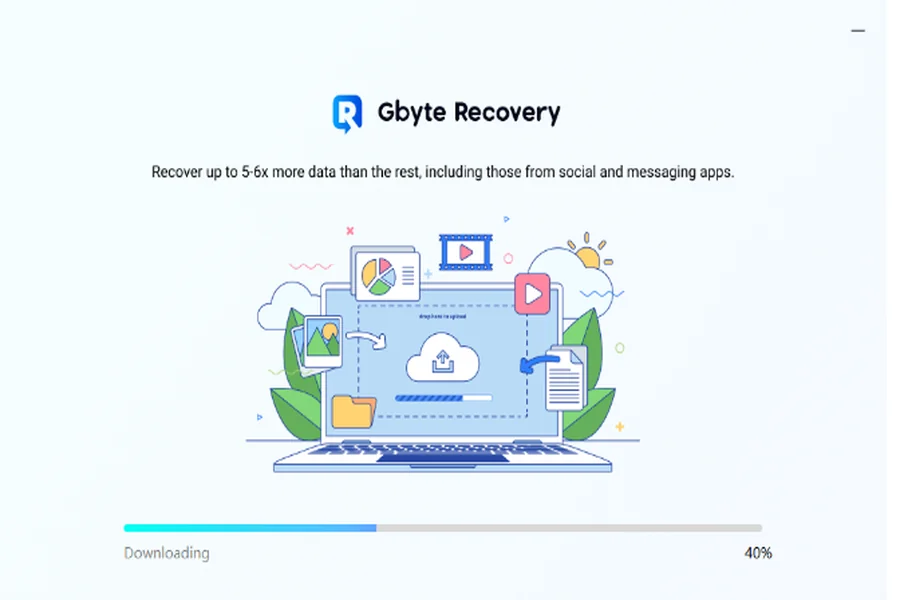
- Download and install Gbyte Recovery on your Mac or PC
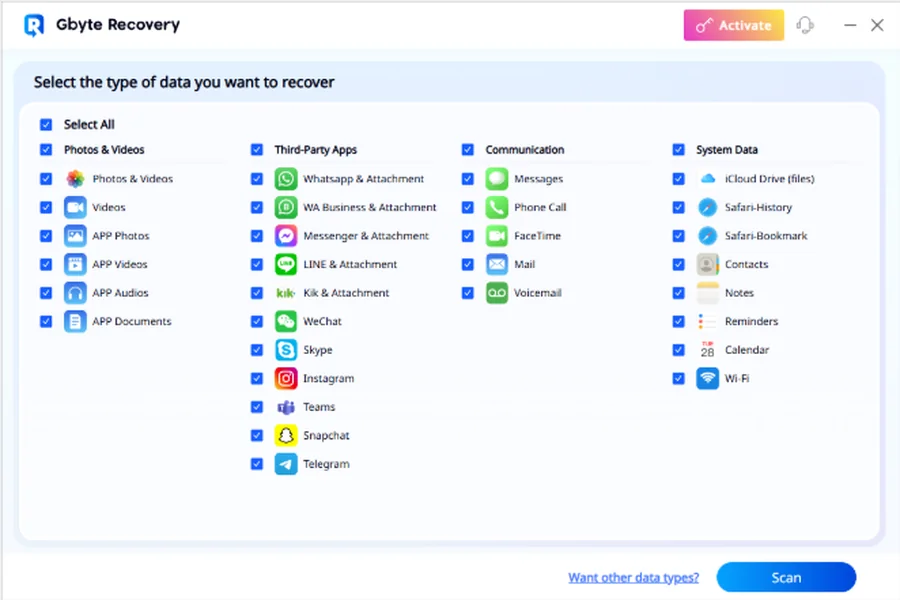
2. Launch the program and Choose WhatsApp and Call Logs as data types to scan
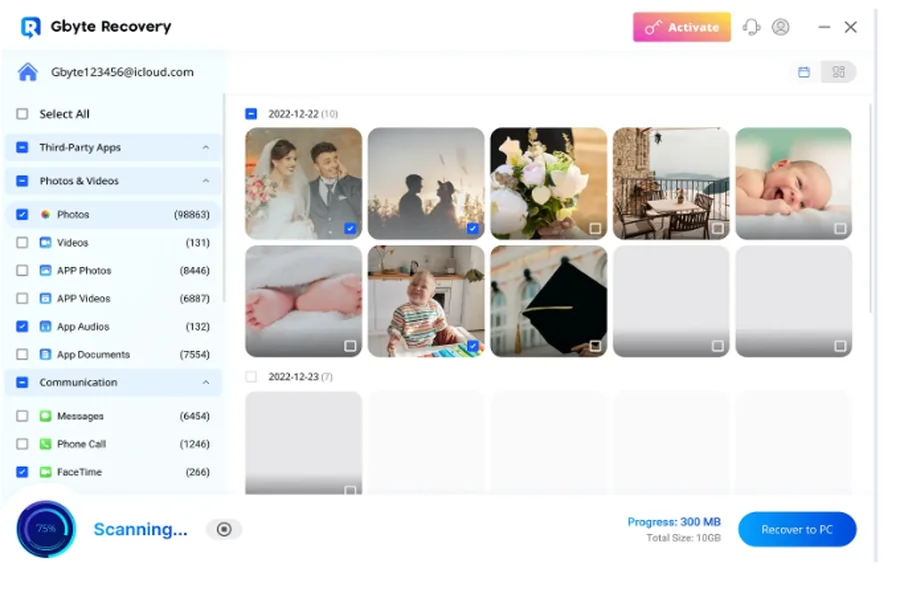
3. Start the scan—this may take a few minutes
4. Preview recovered data > select call logs > click Recover to export
That’s it. No backups. No need to jailbreak. It’s that straightforward – exactly what you’d expect from the best iPhone data recovery software.
What to Avoid When Trying WhatsApp Recovery
Trying every fix you find online might seem like a good idea—but not all of them are safe.
Here’s what not to do:
- Don’t install unverified third-party apps from sketchy websites
- Avoid factory resetting your iPhone repeatedly—this can cause permanent overwrites
- Don’t delay—the longer you wait, the higher the chance that deleted data gets replaced
Stick to trusted tools and tested steps. That’s how you protect both your privacy and your lost information.
Final Thoughts: Your WhatsApp Call Logs Aren’t Gone for Good
Losing your call history can feel like hitting a dead end—but in reality, it’s more of a detour.
As we’ve covered, there are multiple ways to retrieve WhatsApp call logs on iPhone, whether through iCloud, WhatsApp’s internal backup, or with professional recovery software. If the usual paths don’t work, tools like Gbyte Recovery step in when nothing else does.
In 2025, the tech may evolve—but your chances of recovery are better than ever. Start now, act smart, and those vanished call logs? They might be just a few clicks away.